Photo colour tools

Turn a reference image into a paint shortlist.

Explore colours from a miniature, concept image, or palette, then compare the result with catalogue paints—without pretending a camera can measure the paint in front of you.

  • Optional creative workflow
  • Catalogue-based suggestions
  • iOS & Android app
  • Free to start
What it doesPhoto colour tools help identify a useful palette direction from pixels. They do not recover the physical paint formula, surface finish, coverage, or lighting-independent colour of the photographed object.

Use the image as inspiration, not an instrument

A camera records a scene after illumination, lens processing, white balance, exposure, compression, and display rendering have all influenced it. That makes a sampled pixel useful for relative exploration—but not a physical measurement of the miniature or paint pot.

  • Pull candidate colours from a reference image.
  • Compare those candidates against recorded catalogue colours.
  • Build a palette or recipe from the shortlist.
  • Keep uncertainty visible before committing to a model.
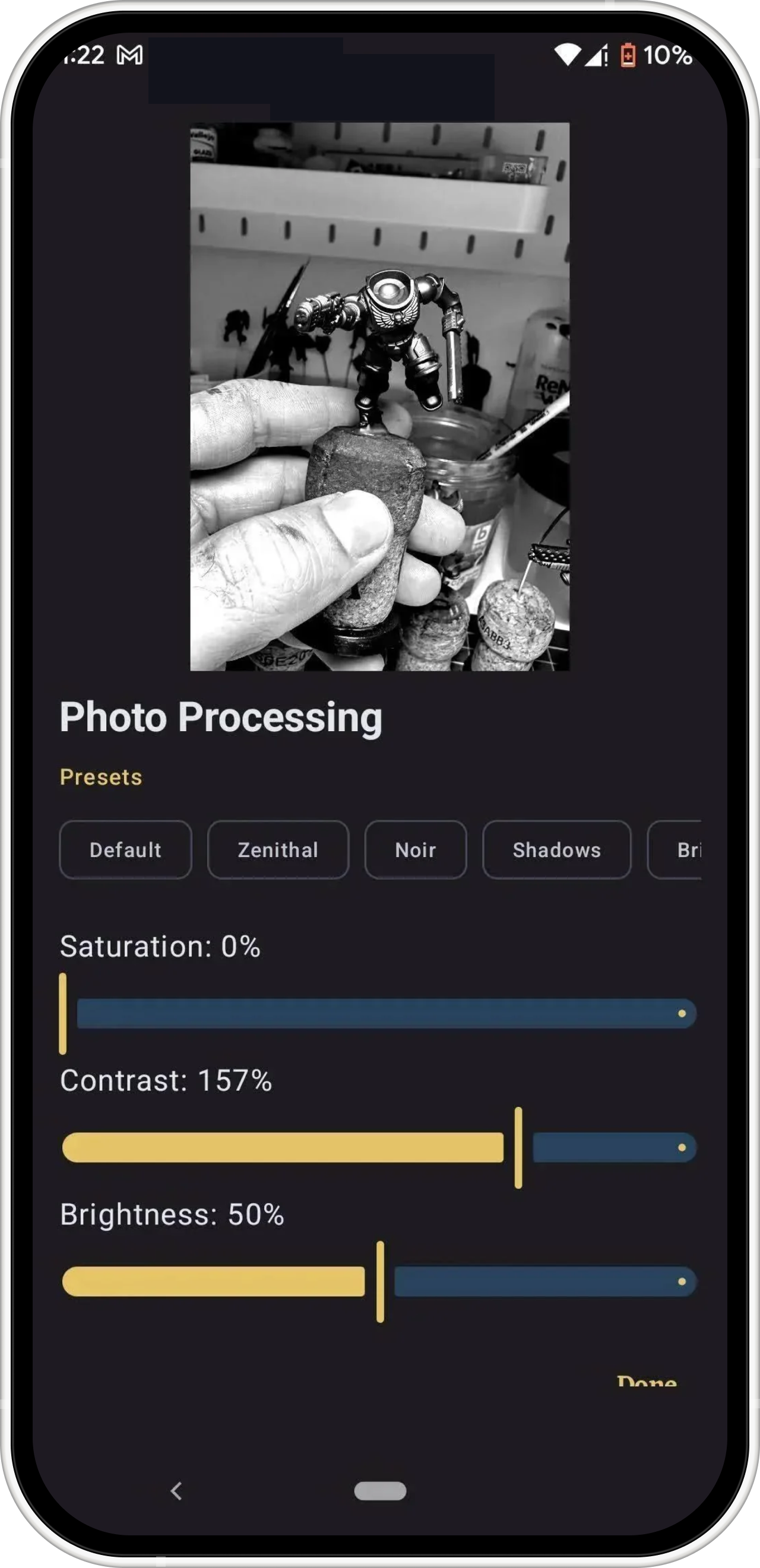
BrushForge photo colour tool displaying a miniature painting reference
Photo-derived colours are inputs for exploration, not physical paint readings.
Better source images

Reduce avoidable colour shifts

1

Use neutral light

Avoid mixed daylight and warm room light. A single diffuse source makes the image easier to interpret.

2

Avoid hard highlights

Specular reflections can look like much lighter paint even when the underlying layer is unchanged.

3

Include context

Sample a region, not a single edge pixel, and compare several nearby areas before choosing a candidate.

4

Test on the real undercoat

The primer, number of coats, thinning, and varnish all affect the final appearance.

What a photo cannot tell you

A pixel cannot identify opacity, coverage, drying shift, pigment separation, granulation, metallic flake, or how a wash flows into recesses. A close colour candidate may therefore be the wrong material for the job.

Screen previews also change with calibration, display technology, True Tone, Night Shift, brightness, and viewing environment. Use them to compare relative differences, then check physical paint when finish and final appearance matter.

Availability

Photo and creative-tool availability can differ between current Android and iOS releases. The converter, inventory, recipe, and project workflows remain the primary product experience; check the current store listing and installed app for the exact tools available on your platform.

Do not use a photographed swatch as calibration dataBrushForge does not claim spectrophotometer or physical brushout measurement from ordinary photos. The output is a creative shortlist.

Move a colour idea into a working recipe.

Explore a reference, shortlist recorded paint colours, and save the choices with your project. Confirm important finishes with physical paint.